
For anyone with more than one Gmail
Your email, with Scout beside you. Talk it through. Review what comes next.
Catch up with Scout, talk through a reply, and keep work and personal mail clearly labeled. Optional assistance proposes next steps for your review. Encrypted messaging is not available yet; ordinary Gmail is not end-to-end encrypted.
- Free to use
- No payment required

Security, exactly as available
What is protected today, and what is not built yet.
Each item carries its status and its limit, side by side.
Each mailbox connects through Google
Available nowEvery Gmail or Workspace mailbox is authorized separately through Google. PonyXpress never asks for your Google password, and you can disconnect each one on its own.
Limit: Workspace administrators can restrict third-party access.
Remote images blocked by default
Available nowImages that load from the sender’s servers stay off until you choose to show them.
Limit: Ordinary Gmail mail is not end-to-end encrypted, here or in Gmail itself.
Encrypted saved copies for offline reading
Needs permission or setupOpt in, then pick loaded conversations: up to 50 threads, 200 messages and 8 MiB of text, locked with a separate passphrase and kept for 1, 7 or 30 days.
Limit: Read-only in the prepared /offline/ reader, not the full app. No attachments, HTML or sending. Needs an online check at least every seven days. Forgotten passphrases cannot be recovered.
End-to-end encrypted messaging
Not available yetClient-side end-to-end encrypted messaging is not available yet. A fictional design preview exists only to show the planned flow; it has no encryption, authentication or delivery. Use fictional content only.
Limit: Encrypted saved device copies are a different feature and do not encrypt mail you send or receive.
Scout Ride Ahead
Catch up with a report you start, then decide.
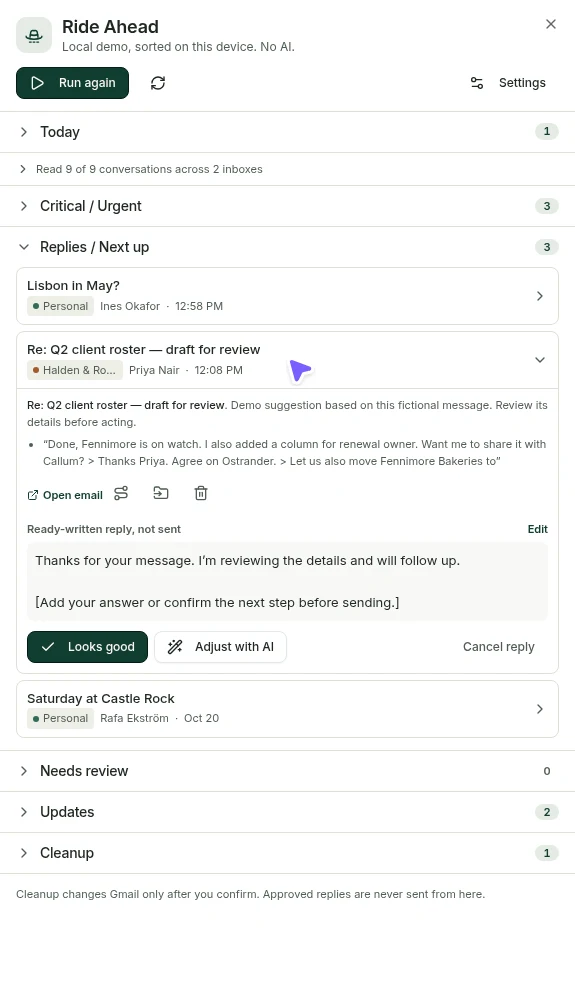
Scout is manual by default. When you run it, it sorts what it finds into counted groups, urgent work first, with reply drafts and cleanup suggestions waiting for your review. You can also choose to have it run once when you sign in.
- Optional. Inbox-wide analysis needs its own consent, separate from one-message summaries, plus cloud AI eligibility and an AI provider configured on this server.
- Looks good records your approval of a draft. It does not send. Sending is still you, in the composer.
- Cleanup starts with nothing selected and works in reviewed batches; the source conversation is always one click away.
Optional Scout Voice
Talk through your email. Nothing listens until you press.
Voice is another way to work through Ride Ahead, not a background listener. Each cloud piece is its own saved opt-in, off by default.
Scout Voice privacyTalk it through
Open Ride Ahead, choose Talk it through, pick a mailbox and a catch-up interval. Ask about what arrived; answers point to their source email.
Push-to-talk, never always-on
Hold to speak, up to 30 seconds. Recordings go to OpenAI for transcription only after you enable it; you review the transcript before it is submitted. Raw recordings are not kept.
Read aloud, two ways
Natural read-aloud from OpenAI is its own saved opt-in. Or choose an on-device voice that stays local. A failed AI voice never quietly switches to the device voice.
Proposals become reviewed drafts
Scout can propose a reply or forward. You confirm the full recipients and contents to save a draft. Only the composer sends, and only when you press Send.
Limits worth knowing
- Separate saved permissions for natural read-aloud, microphone transcription and PDF review. Start conversation once to ask spoken questions automatically on pause; end it at any time. A PDF is reviewed only when you select and confirm it: first six pages, up to 8 MB.
- Requires ordinary Scout consent, adult cloud AI eligibility, a configured AI provider, and the grant for each purpose, account and action.
- Microphone support depends on your browser and device. The packaged desktop app blocks the microphone and offers typed sessions instead.
- Never always-on, never sends mail, and not used on secure or encrypted content.
Every identity, kept clear
Together in one place, never blurred together.
A name and color per account
Every conversation carries its account badge in All inboxes, so a client thread never looks like a personal one.
The right sending address
Replies come from the account that received the mail. Verified Gmail send-as addresses are available per account.
Signatures that stay put
Separate new-mail and reply signatures per account or address. The composer never offers one from another account.
Organization per mailbox
Mailbags are real Gmail labels in each account, so your filing still makes sense in Gmail itself.
Mailbags and Routes
Filing that matches how you already work in Gmail.
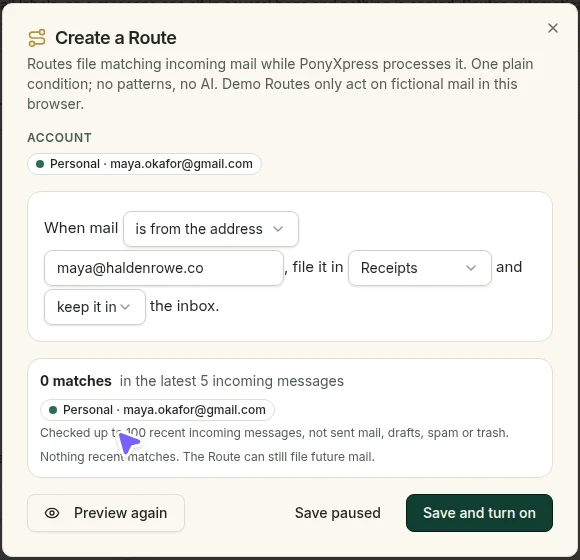
Mailbags are Gmail labels in each account. Routes file new matching mail into them while PonyXpress processes your incoming mail, after you preview the matches and save the rule.
- Choose senders or domains, a Mailbag per account, and whether mail also stays in the inbox.
- Routes apply only the filing you configured, to mail arriving while processing runs.
- Older mail is not swept up automatically; filing it is a separate, reviewed action.
From message to plan
A date in an email becomes an event or reminder you have checked.
Underlined dates and Scout suggestions open an editable draft. Nothing is saved until you confirm, and every saved item links back to its source email.
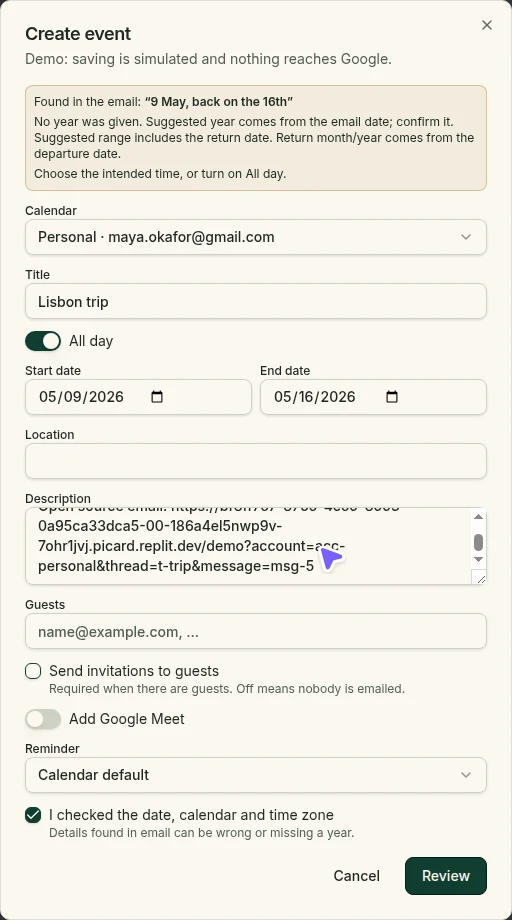
- Events: reviewed title, time, time zone, location and optional guests. Invitations go out only if you choose.
- Reminders: private PonyXpress alarms with Snooze and Mark done. Not Google Tasks, and no calendar permission needed.
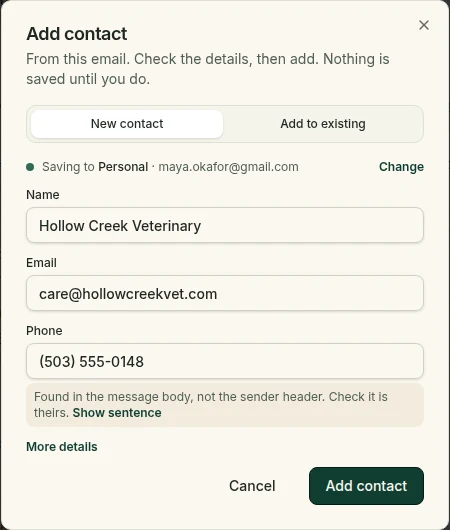
- Contacts: review the details, then save to the account you choose. Sharing between accounts starts with a preview.
Everyday mail, calendar and contacts
Small jobs, each with its catch stated.
Snooze a thread
Snooze the shipping notice until Thursday morning in your time zone. It waits in Snoozed and returns to the inbox then.
Limit: Return on time needs server processing to run.
Unsubscribe in a reviewed batch
Select four newsletters and choose Unsubscribe. The review shows each sender, domain and supported method; one confirmation covers only verified one-click requests.
Limit: Request accepted is not removal. Senders may take days or ignore it. Website and email methods stay manual, and there is no Undo.
Invitations and meetings
Review a simple .ics invitation, choose a calendar and save a copy. Add a Google Meet link or paste an existing Zoom link, and check the time zone before saving.
Limit: One non-recurring event per file in this first format; some time zones fail rather than guess. Importing is not an RSVP. PonyXpress does not create Zoom meetings.
Contacts from a sender
Open a sender as a contact draft, check the fields, and save it to the account you choose.
Limit: Needs Google Contacts permission for that account.
Rich signatures
Format a signature with a logo per account or address, separate for new mail and replies.
Limit: Gmail import and export need optional settings permission; export works for the primary address only. Signatures do not sync automatically.
Worked examples
Three ordinary weeks, walked through with real controls.
These people and companies are fictional. The buttons and steps are the ones in PonyXpress today. No time-saved figures, because we have not measured any.
01 / Example one
Monday, after a weekend away
Mara Lindqvist runs a two-person design studio and keeps a separate personal Gmail.
The problem. Sixty-odd conversations arrived across both accounts. Somewhere in there a client is waiting on a revised quote.
In PonyXpress
- As an eligible adult on a server with AI configured, she opens Scout Ride Ahead and runs the report under her saved inbox-wide consent and mailbox/action grants.
- The report groups what it found with counts beside each group, urgent work first. She opens the source conversation behind the quote request before deciding anything.
- Scout proposed a reply draft. She edits a figure, chooses Looks good to record her approval, then opens it in the composer and presses Send herself.
- Under Cleanup she selects a handful of newsletters, chooses Archive and reviews the Apply confirmation before filing them out of the inbox.
What changes
She starts with the conversations that need her, with drafts she has already checked, instead of scrolling two inboxes from the top.
02 / Example two
One person, three hats
Dev Ramanathan consults for Halden & Rowe, freelances under his own Workspace domain, and has a personal Gmail.
The problem. In separate tabs he once answered a client from his personal address. Now he double-checks every From line.
In PonyXpress
- He connects each mailbox separately with its own Google permission and gives each a name and color.
- In All inboxes every conversation shows its account badge. He collapses a long thread to scan who replied last.
- Replying, the From line and signature follow the receiving account; his client signature never appears in personal mail.
- He creates a Route so future mail from the client domain lands in a Halden & Rowe Mailbag in that account only, after previewing the matches.
What changes
One place to read, with each identity still unmistakable at the moment it matters: when he presses Send.
03 / Example three
An email that is really three tasks
Ines Okafor coordinates a community arts festival from her Workspace account.
The problem. A venue manager emailed a site visit time, a permit deadline and new phone details, all in one message.
In PonyXpress
- The visit time is underlined in the message. She opens it as an event draft, checks the date, time zone and location, and saves it to her connected calendar.
- For the permit deadline she chooses Reminder: a private alarm in PonyXpress, with Snooze and Mark done.
- She opens the sender as a contact, reviews the fields and saves it to that account’s Google Contacts.
- Later, the event and reminder each link back to the original email, so the context is one click away.
What changes
The plan lives where she will see it, every item was reviewed by her, and nothing is cut off from the email it came from.
Why PonyXpress?
A different workflow, not a claim that everything else falls short.
Many mail apps offer unified inboxes, calendars or AI. This compares common ways of working with several Google accounts, so you can judge whether ours fits yours.
| Task | Separate Gmail tabs | A conventional inbox list | PonyXpress |
|---|---|---|---|
| Seeing everything new | Check each tab in turn | Scan a chronological list; account cues depend on the client | All inboxes, each conversation badged by account |
| Replying as the right identity | Depends on which tab is in front | Depends on the client and its settings | From line and signature follow the receiving account |
| Catching up after time away | Repeat your catch-up workflow for each mailbox | Review messages in the list’s chosen order | Optional Scout report with counted groups and drafts for you to review |
| Turning email into plans | Switch between mail and planning views | Varies by client | Reviewed events/reminders link to the email; contact details open for review |
| Filing new mail | Manage filing separately for each mailbox | Varies by client | Routes into Mailbags (Gmail labels), previewed before saving |
| Reading without a connection | Depends on browser settings | Varies by client | Opt-in encrypted text copies of selected conversations in a read-only reader |
| Desktop app | Browser | Often available | Browser today; signed installers not yet available |
General workflow descriptions, not an assessment of any named product.
Suggestions wait for you. Sending is always yours.
Each mailbox connects through its own Google permission; PonyXpress never asks for your Google password. Cloud AI features need your consent and can be turned off. Remote images are blocked by default. End-to-end encrypted messaging is not available yet.
Read the Privacy Notice- Connect or disconnect each account independently.
- Scout runs when you start it, or once at sign-in if you opt in.
- The microphone opens only for a recording or conversation you explicitly start, with a visible listening indicator.
- Approving a draft is not sending it.
- Events, reminders and contacts are saved only after you review them.
- Archive, Trash and Delete forever stay distinct; Undo send gives a short window.
Getting startedIs PonyXpress free?
Yes. PonyXpress is free to use, with no payment required. A free PonyXpress account and your agreement to the Terms and Privacy Notice are required before connecting real mail.
- Choose Create free account on the website.
- Sign up, review the agreement, then connect your Gmail mailbox.
Getting startedHow do I connect another Gmail account?
PonyXpress connects Gmail and Google Workspace mailboxes individually, not Outlook, Yahoo or IMAP accounts. Signing in to PonyXpress and authorizing Google mailbox access are separate steps. Google connection setup must be available on this server, and Workspace administrators may restrict access.
- Open Settings → Connected accounts.
- Choose Add another account and complete Google authorization for that mailbox.
- Use its account name and color to distinguish it in All inboxes.
ScoutWhat does Scout Ride Ahead do?
Ride Ahead helps you catch up with counted review groups, reply drafts, today’s schedule and expandable cleanup suggestions. It is manual by default, with optional sign-in auto-run. Live inbox-wide cloud analysis needs separate consent, saved settings and configured AI; reports can be partial. Looks good approves a reply but does not send it: open it in the composer to send.
- Open Ride Ahead and choose your settings the first time.
- Review the cloud-analysis and optional learning choices, then save.
- Run the report, review urgent items first and approve any proposed action yourself. You can change the settings later.
PrivacyDoes Scout read my mail automatically or train AI on it?
Cloud AI requires consent. Ride Ahead has separate inbox-wide consent and optional learning/style settings. OpenAI API content is not used to train general models by default; standard abuse-monitoring retention can be up to 30 days, with legal and safety exceptions. Ordinary Scout never sends attachments; Scout Voice PDF review is a separate permission and sends only a PDF you select and confirm.
- Review Settings → Privacy for conversation AI.
- Review Ride Ahead → Settings separately for inbox-wide analysis, sign-in runs and learning choices.
- Turn optional features off when you do not want new analysis. Read the Privacy Notice for details.
MailHow do I automatically move emails into a folder?
Use a Mailbag, which is a Gmail label, and a Route. After you preview and enable the rule, Routes perform only your configured filing of matching new incoming mail while PonyXpress processing runs. They do not send, forward or delete mail.
- Open Mailbags and Routes, or select conversations and choose Create Route.
- Choose specific senders or domains, a Mailbag for each account, and whether to keep or skip the inbox.
- Preview the matches, then confirm and save. Existing mail needs its own reviewed filing action.
CalendarWhat is the difference between a reminder and a calendar event?
A new reminder is a private PonyXpress task alarm with Snooze and Mark done, not a meeting with duration, busy time or guests. It does not need Google Calendar permission and is not a Google Calendar event or Google Task. Earlier calendar-based reminders remain unchanged. Use an event for a scheduled meeting or appointment.
- Choose Reminder when reviewing a date in an email.
- Confirm what you need to do and when you want the alarm.
- When it alerts, Snooze it or Mark done. Notification permissions and device limits still apply.
Getting startedWhere do I download the desktop app?
The Downloads page shows which installers are actually available. A release is not downloadable until a real installer has been built and listed there. You can use the browser app or fictional demo in the meantime.
- Open Downloads on the website.
- Choose an available installer for your operating system and follow its instructions.
- If no installer is listed, use the browser version rather than an unofficial download.

See it with two fictional accounts first.
The demo runs in your browser with made-up mail and no sign-in. When you are ready, a PonyXpress account is free.
Free to use. No payment required. Connecting Gmail depends on this server's Google setup.